

Bank statement import
GigBooks reconciles your books against your bank account by importing a PDF statement that you export from your online bank. There’s no live PSD2 connection yet — it’s a deliberate one-step-at-a-time approach: you stay in control of what enters the books, and your bank credentials never touch GigBooks.
This page walks through the import flow and lists which Finnish banks are supported today.
Supported banks today
GigBooks parses PDF statements from:
- Nordea
- OP
These are the two largest Finnish retail banks and cover the majority of platform workers we talk to.
The bank-picker UI also lists Danske Bank, S-Pankki, Aktia, Handelsbanken, and “Other” — these are visible but disabled with a coming soon label. We’re shipping parsers for them in priority order based on user demand. If your bank is missing, tell us and we’ll bump the queue.
What you’ll need from your bank
Each Finnish online bank exports statements slightly differently. The PDF format GigBooks expects:
- Nordea — the standard “Tiliote” PDF you can download from your account’s transaction history. Choose any time range up to a calendar month or two — both shorter and longer ranges work.
- OP — the standard “Tiliote” PDF from OP-mobile or op.fi. Same range advice.
You don’t need to choose a specific format option (CSV, MT940, etc.) — just the standard PDF.
Running an import
From the Bank tab, tap Import statement (or use the FAB on the Bank Activity screen).
- Pick your bank. If you’ve imported before, GigBooks remembers your last choice.
- Pick the PDF file from your phone’s documents.
- Wait a few seconds while GigBooks parses the file. For a typical month, parsing takes 1–3 seconds.
When parsing completes, you see a summary:
- New rows — transactions GigBooks didn’t already have.
- Auto-matched — new rows it confidently linked to existing entries (a Wolt payout that matches the right week’s shifts, a fuel expense that matches a receipt you snapped).
- Duplicates — rows that overlap with previous imports. Skipped.
- To review — new rows the AI couldn’t auto-match. You’ll classify these in the next step.
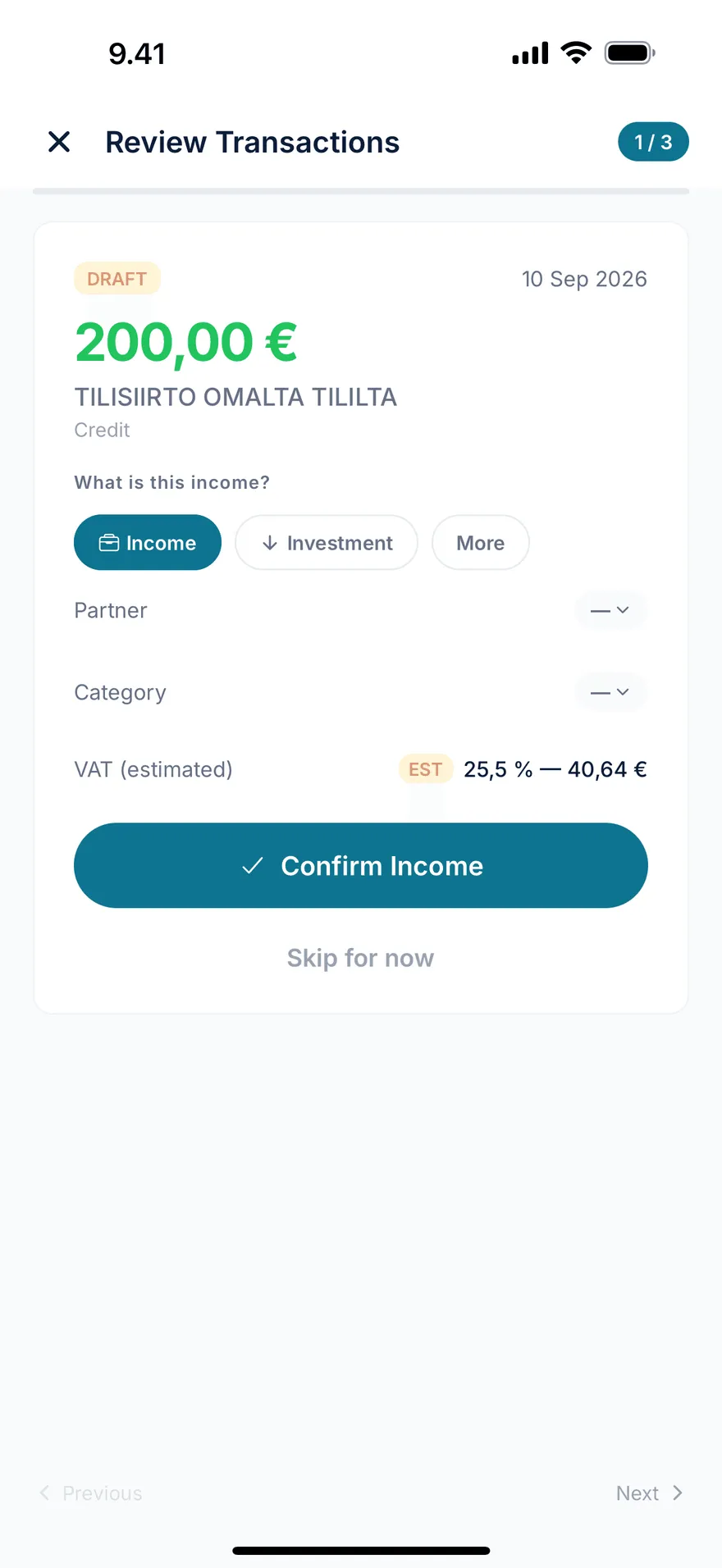
Triaging “to review”
The triage queue is the part of GigBooks that turns raw bank rows into clean books. Each row in to review has:
- The bank’s date, description, and amount.
- A best-guess suggested classification (e.g., “Wolt weekly payout — operating income, 24% VAT”) based on the description and your past behaviour.
- A list of alternative suggestions when the AI isn’t sure.
For each row, you do one of three things:
- Accept the suggestion → row becomes a confirmed entry in the books.
- Pick a different category or partner → row becomes a confirmed entry with your choice.
- Exclude the row → marks it as personal / not part of the business books. It stays in the bank record but never affects your P&L or VAT.
You can leave rows in in progress if you need to ask someone or check a receipt — they don’t disappear, and the dashboard activity card will keep nudging you until they’re either posted or excluded.
Linking a transaction to an existing entry
If a bank row matches a draft entry you already have — typically a fuel receipt you snapped earlier in the week, or a shift income line — you can link them instead of creating a new entry.
From the bank-row detail screen, tap Link to existing entry and pick the entry. Once linked:
- The bank row’s status flips to
posted. - The entry’s status flips to
confirmed(if it wasn’t already). - The pair is now reconciled.
This is how you avoid double-booking the same income (once when you logged the shift, once when the payout hit the bank).
Bank accounts
Each PDF you import is associated with a bank account in GigBooks (e.g., your Nordea käyttötili). The first import creates the account; future imports of the same account merge into it.
In Bank → Accounts you can:
- Rename an account.
- Mark it as the primary business account (drives some dashboard cards).
- Mark an account as mixed (used for both personal and business). When mixed, GigBooks keeps the rows but excludes anything you mark personal.
- Delete an account — only if all its rows are marked excluded or have been re-associated elsewhere. That’s a guardrail to prevent losing audit trail.
What “auto-matched” actually does
When the import runs, GigBooks tries to match each new bank row against:
- Recent draft income entries for the same amount, partner, and rough date — typical for a logged shift whose Wolt payout has just arrived.
- Recent draft expense entries for similar merchant + amount — typical for a fuel receipt you snapped earlier in the week.
- Recurring patterns the app has seen before from the same description — useful for things like Vero advance-tax instalments or your YEL provider’s monthly debit.
If it’s confident, it links and posts. If it’s not, the row goes to to review.
The matching is statistical, not magical. Over time it gets better at your bank’s quirks.
What it can’t do (yet)
- Live bank feeds (PSD2/Open Banking). On the roadmap. For now, an upload routine once a week or once a month is enough for most users.
- Statements from non-Finnish banks. Nordea and OP are Finnish-format only. If you bank with Revolut, Wise, N26, or a foreign bank, that’s not supported today.
- Filing or approving payments. GigBooks reconciles records — it never moves money.
A reasonable monthly rhythm
- Around the 1st — export last month’s statement from your bank, upload it.
- Same sitting — work through the triage queue. Most months this is 5–15 minutes.
- Mark VAT as filed in OmaVero on the same evening if you’ve reached a period boundary.
That’s the whole bank routine.
Next
- Receipts — how snapped receipts pair with bank rows.
- Bookkeeping basics — an overview of income, expenses and supporting records.
- VAT — when an imported payout starts counting towards the €20,000 line.