

Logging shifts
A shift in GigBooks is a single block of delivery or rideshare work, with a start and end time and everything you earned and spent during it. You can either run a live shift in the app — start when you clock in on the platform, end when you log off — or log a completed shift after the fact.
This page covers both flows.
Live shifts vs logged shifts
| Live shift | Logged shift | |
|---|---|---|
| When | You start it as you begin work | You enter it after the shift is over |
| Time tracking | Automatic — start and end timestamps | You enter the date and times |
| Distance | GPS distance can be recorded | Odometer start/end, or skip |
| Best for | Drivers who want to track time and distance live | Couriers who’d rather batch-enter at end of day |
Both produce the same record afterwards. Pick whichever fits your work style.
Starting a live shift
From a delivery or rideshare stream, tap Start shift.
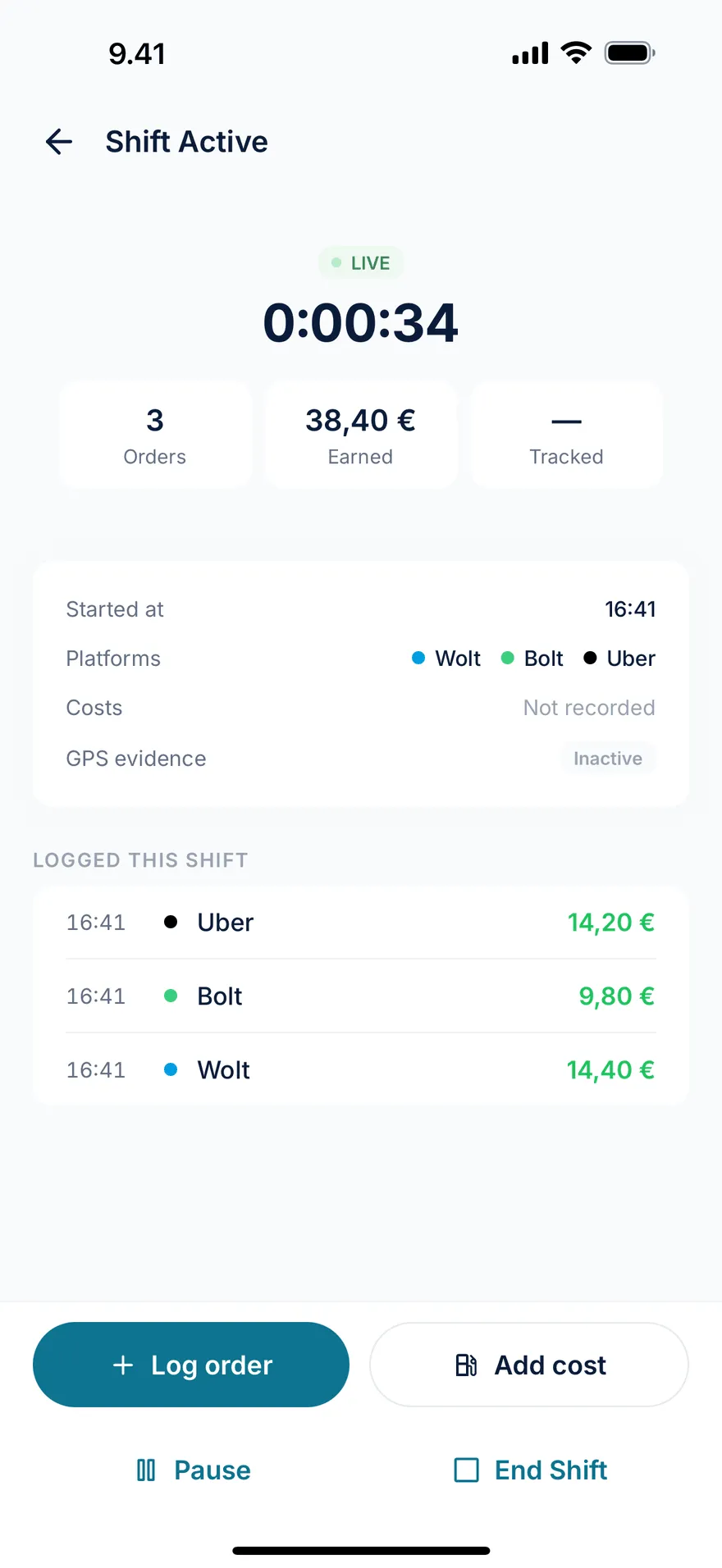
You’ll be asked:
- Which platforms you’ll be working on this shift. Tap to select; only platforms attached to this stream show up. (See streams to add a platform.)
- Odometer start — optional. Enter the reading on your dashboard if you want kilometre-based deduction without GPS tracking.
- GPS tracking — optional. If on, GigBooks tracks distance from start to end of the shift. Battery use is moderate; most users leave this off and use the odometer instead.
Tap Start. The shift status is now active. You’re back to your everyday driving — open the platform’s app, take orders, do the work.
Ending a live shift
When you log off the platform, come back to GigBooks and tap End shift on the active shift.
You’ll fill in:
- Per platform: how many orders, total earnings, tips. The order count helps with €/order analytics later.
- Costs: any fuel stop, parking, toll. Tap Add cost, pick the type, snap or upload the receipt, save.
- Odometer end — if you set a start reading.
- Notes — free text. Useful for “rainy night, slow zone” reminders if you analyse your earnings later.
Tap Save. The shift moves to completed, the entries land in your books as draft income (you confirm them once at the end of the day), and your dashboard refreshes.
Logging a completed shift
If you’d rather batch-enter at the end of the day, week, or shift, tap Log shift instead of Start shift.
You enter the same fields (date, start time, end time, platform earnings and orders, costs, odometer or GPS distance), and save in one go. The result is the same as a live shift: a completed record in your books.
For couriers who do many short shifts a day, logging end-of-day is usually faster than running the timer.
Costs during a shift
Add costs as they happen — it’s much faster than reconstructing them later from receipts in a glove box.
Cost types today:
- Fuel — petrol, diesel, EV charging
- Parking — meters, garages
- Toll — bridge or tunnel tolls
- Other — anything else (car wash, an emergency phone charger)
Each cost has an amount and an optional note. You can also attach a receipt photo right then; GigBooks reads the merchant, amount, and VAT and saves the image as proof for the Bookkeeping Act six-year retention rule.
Distance — odometer or GPS
The Finnish Tax Administration’s per-kilometre deduction (the verovapaa kilometrikorvaus) is one of the largest single deductions a courier or driver claims, so the distance number matters. GigBooks supports two ways to capture it:
- Odometer — write down your odometer reading at the start of the shift, again at the end. GigBooks computes the difference. The most accurate method if you’re disciplined.
- GPS — toggle on in Start shift. GigBooks samples your location while the shift is active and computes total distance. Useful when you don’t want to think about the odometer, but slightly less accurate (and uses battery).
You can also leave distance empty for a shift if you’d rather not track it. The shift is still valid — you just won’t get the kilometre deduction for it.
Once you know your eligible deductible amount, the deduction impact calculator estimates its effect using a tax rate you choose. It does not determine mileage allowances or eligibility.
Per-order logging (optional)
If you want a finer-grained record — useful for tip analytics or for understanding your hourly rate by platform — you can log individual orders during a live shift.
From the active shift screen, tap Add order. Pick the platform, enter the amount and tip, optionally the distance and completion time, and save. Each order is one row in the shift’s order list.
Most users don’t bother — entering aggregate per-platform totals at end-of-shift is enough. But the option is there.
Editing or correcting a shift
You can edit a shift’s notes, odometer readings, or GPS distance at any time. To change a platform earnings line or a cost after the shift is completed:
- If the entries are still draft, edit them directly.
- If they’ve been confirmed (and especially if linked to a bank activity), GigBooks creates a correction entry rather than mutating the original. This is the Bookkeeping Act way — see bookkeeping basics for why.
What goes into your books
A completed shift produces:
- One operating income entry per platform you worked on, dated to the shift date, partner-tagged with that platform.
- One operating expense entry per cost you added, dated to the shift date, with the cost type as category and the receipt attached.
These entries appear in Books (the journal), feed the dashboard P&L and VAT line, and reconcile against your bank import when the platform’s payout hits your account.
Next
- Bank import — how the weekly Wolt payout matches up against your shifts.
- Receipts — the chat OCR flow you’ll use for fuel and gear.
- VAT — when shift earnings start counting towards the €20,000 line.